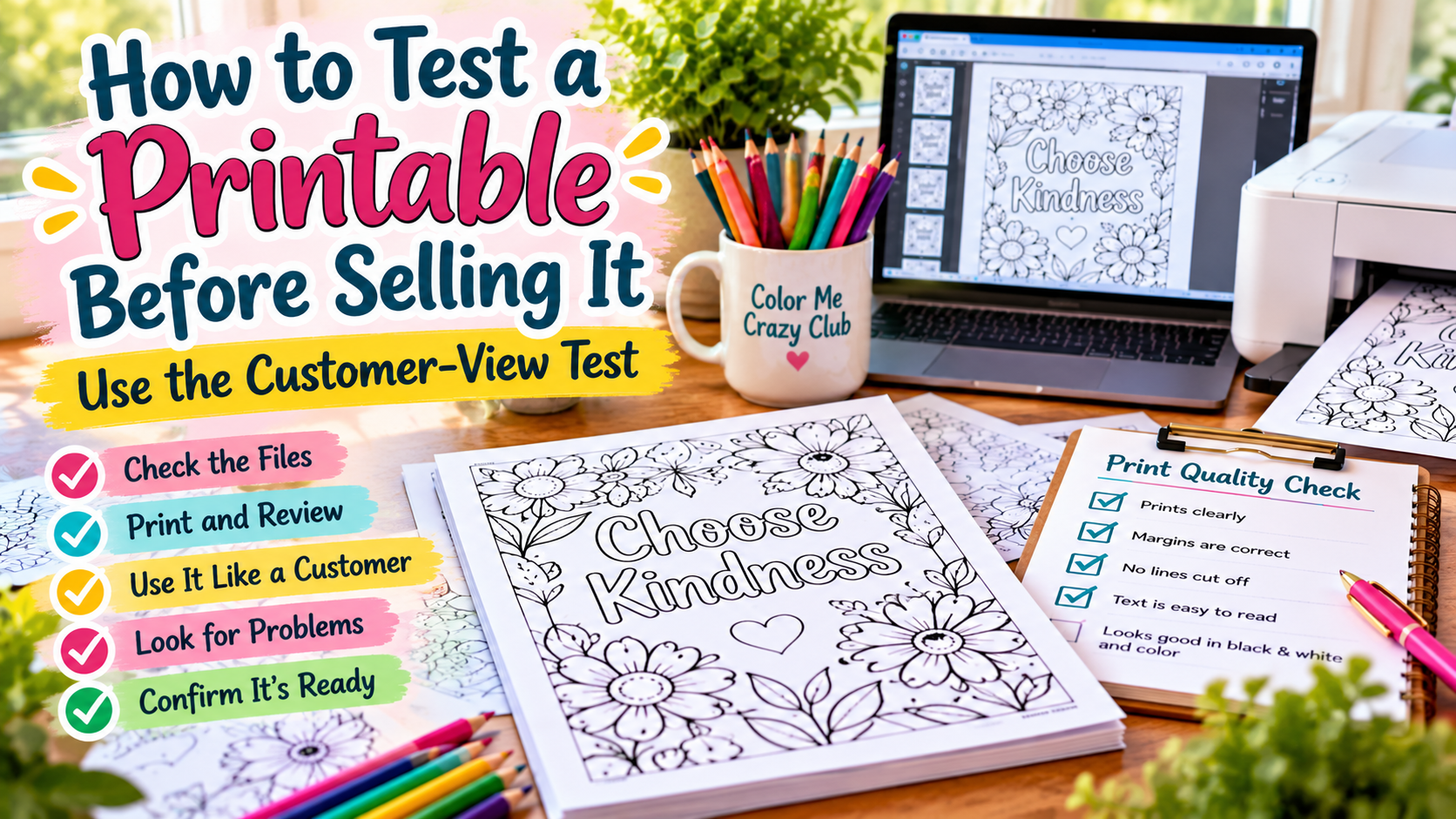
How to Test a Printable Before Selling It: Use the Customer-View Test
Your printable may look finished on your screen. Testing it like a real customer can uncover problems you stopped noticing hours ago.
You finally finished the printable.
The pages look right. The PDF exported correctly. You checked the spelling. Maybe you even opened the file one more time and clicked through every page.
Everything looks ready.
There is just one problem.
You already know exactly how the product is supposed to work.
You know which file to open. You know what every instruction means. You know where page two is supposed to lead. You know why that box is there and what the customer is supposed to write inside it.
Your customer knows none of that.
That is why one of the last things I do before publishing a printable is stop looking at it like its creator and start testing it like the person who just bought it.
That change in perspective can expose problems that another round of proofreading won’t
The Quick Answer: How to Test Your Printable Before Selling
To test a printable before selling it, recreate the customer’s experience from beginning to end. Download the files, open them without relying on your creator knowledge, print the product, actually use it, and record anything that causes confusion or unnecessary friction. Fix the problems that affect usability, then perform one final pre-launch check before publishing
Why Creators Miss Problems in Their Own Printables
There comes a point during product creation when you know the product too well.
If you created a 30-page activity book, you probably know why the activities appear in their current order. If you made a planner, you already understand how the different planning pages work together. If you designed a coloring book, you know which pages belong to the collection and how they’re supposed to print.
That knowledge is useful while you’re creating.
It becomes a disadvantage while you’re testing.
You can read an unclear instruction and automatically fill in the missing information because you wrote it. You can overlook a strangely named PDF because you already know what is inside it. You can navigate an awkward product because you remember how you designed it.
A customer doesn’t have those advantages.
They see what you actually delivered, not what you intended to deliver.
That difference is what we’re going to test.
Customer-view testing is one part of a larger product creation process. If you’re still working through the design, assembly, and preparation stages, my Complete Printable Product Creation System walks you through the full process from idea to finished product.
What is a Customer-View Printable Test?
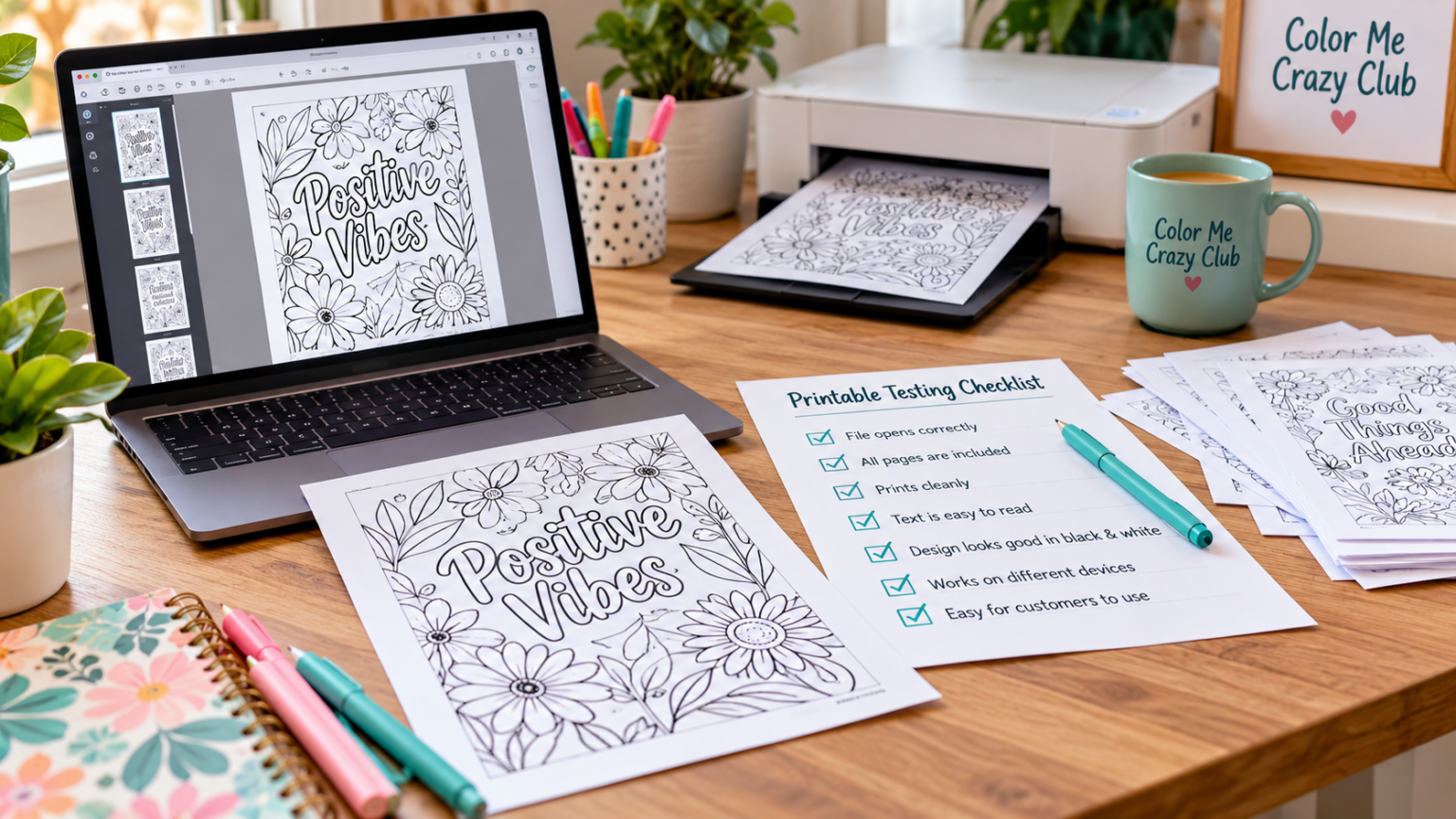
A customer-view test is exactly what it sounds like.
You temporarily stop evaluating your printable as the person who made it and recreate as much of the buyer’s experience as possible.
That means you don’t start with the editable Canva file or your neatly organized project folder.
You start with the files the customer will receive.
Then you work forward.
Can you understand the download?
Can you open everything?
Do the product print correctly?
Can you actually use it without having to explain anything to yourself?
The goal isn’t to prove that your product is perfect. It is to find friction be3fore a paying customer finds it for you.
Before You Publish, Check These 5 Things
Testing your printable is an important step, but how do you know when it’s actually ready to sell?
I created a free Printable Pre-Launch Checklist to help you review five important areas before publishing. It includes a final decision sheet so you can catch overlooked problems and mover forward with more confidence.
This Is Different From Proofreading
Proofreading is still important, but proofreading answers a narrower question:
Is the content correct?
Customer-view testing asks:
Does the entire product experience work?
A perfectly spelled worksheet can still be confusing.
A beautiful coloring page can still print too close to the edge.
A well-designed activity book can still contain instructions that make sense only to its creator.
A flawless PDF can still be delivered inside a confusing download package.
You need both types of review.
Step 1: Start With the Customer’s Download
Don’t begin your test inside the folder where you created the product.
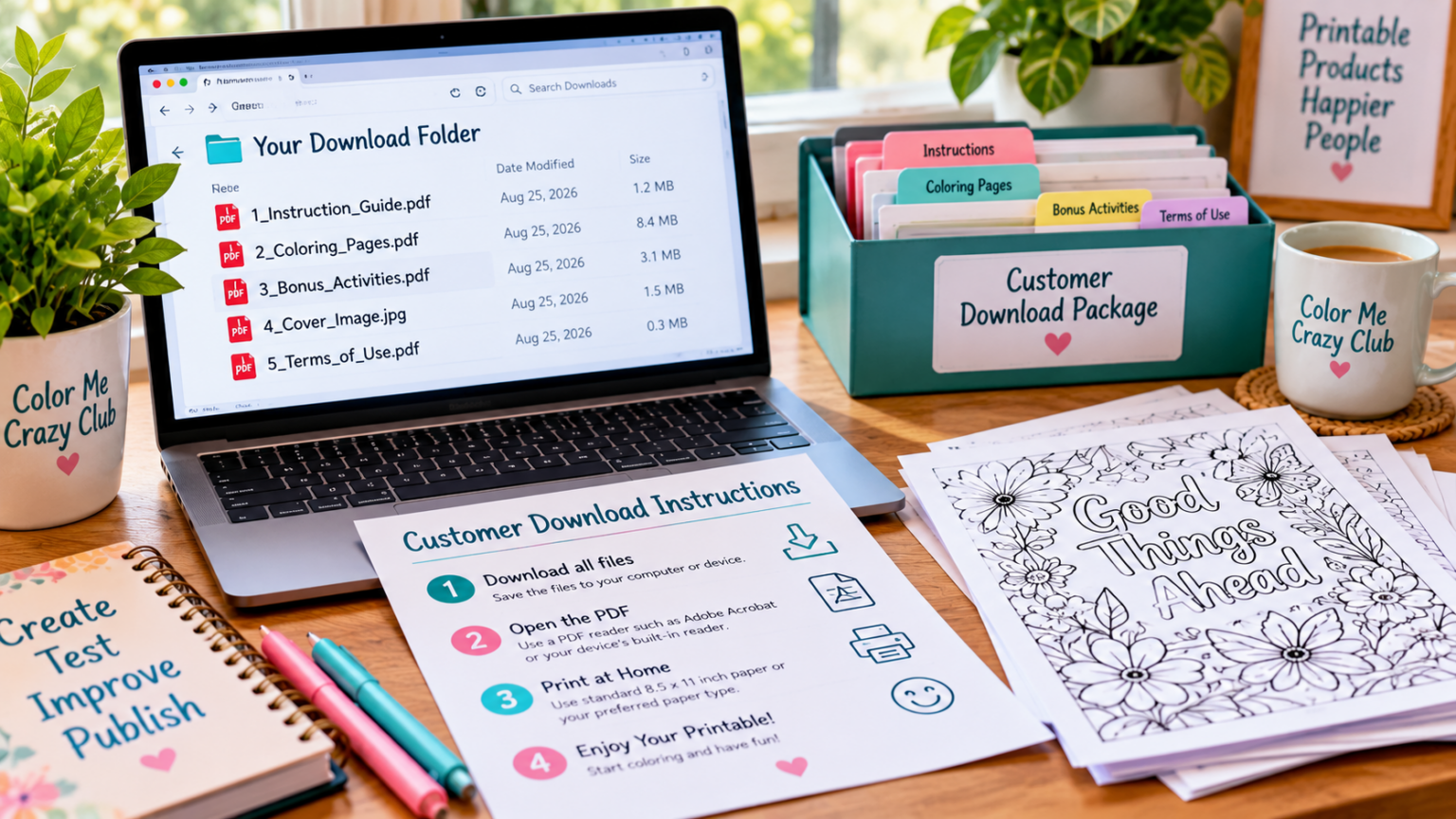
Build the actual customer download package first.
If customers receive one PDF, test that PDF. If they receive a ZIP file containing several PDFs, test the ZIP file. If the package contains instructions, bonus files, printing information, or separate versions, include those too.
Now look at the package without relying on your memory.
Would the filenames make sense to somebody seeing them for the first time?
A filename such as:
final_version_4_fixed_REALFINAL.pdf
Might make perfect sense on your computer.
It doesn’t belong in a customer’s download.
Something like:
Cozy-Fall-Coloring-Pages.pdf
Is immediately understandable.
Check the First 60 Seconds
Imagine the customer has just completed their purchase.
They download your files.
What happens during their first minute?
They shouldn’t have to hunt for the main product, guess which file to open first, or wonder whether something is missing.
For products with multiples, ask yourself:
- Is it obvious which file is the main product?
- Are filenames readable and descriptive?
- Do instructions appear where customers will actually see them?
- Can the files be opened with commonly available software?
- Is anything included that should have been removed?
- Is anything promised in the listing missing from the package?
This is also a good time to remove working files, duplicate exports, temporary images, and anything else the buyer wasn’t supposed to receive.
The customer should receive a finished product, not your production folder.
Step 2: Open the Printable Without Using Your Creator Knowledge
Now open the product.
This sounds almost too simple, but change how you look at it.
Don’t ask, “Does this look good?”
Ask:
“Would I understand what to do if I had never seen this before?“
Start on page one and move through the product in the order a customer is likely to experience it.
Look at titles, instructions, page numbers, navigation, section changes, labels, spacing, and the order of information.
Pay attention whenever you mentally explain something to yourself.
That can be a warning sign.
If you find yourself thinking, “This button means…” or “They’re supposed to use this page after…” ask whether the customer has been given the same information.
Test Instructions Literally
If your printable contains instructions, follow them exactly as written.
Don’t follow what you meant.
For example, suppose an activity tells the user:
“Complete the boxes below and use your answers on the next page.”
That’s fine if the next page clearly tells them what to do with those answers.
If it doesn’t, you’ve found friction.
The same principle applies to planners, worksheets, puzzles, classroom activities, journals, trackers, and other printable products.
Instructions shouldn’t require access to the creator’s brain.
Step 3: Actually Print the Product
This is the step I would not skip for a product intended to be printed.
Looking at a PDF on a monitor isn’t the same as holding the printed page.
Print a representative sample on an ordinary home printer.
You don’t necessarily need to print a 100-page product from beginning to end every time. Choose pages that represent the different layouts, design styles, orientations, and content types inside the product.
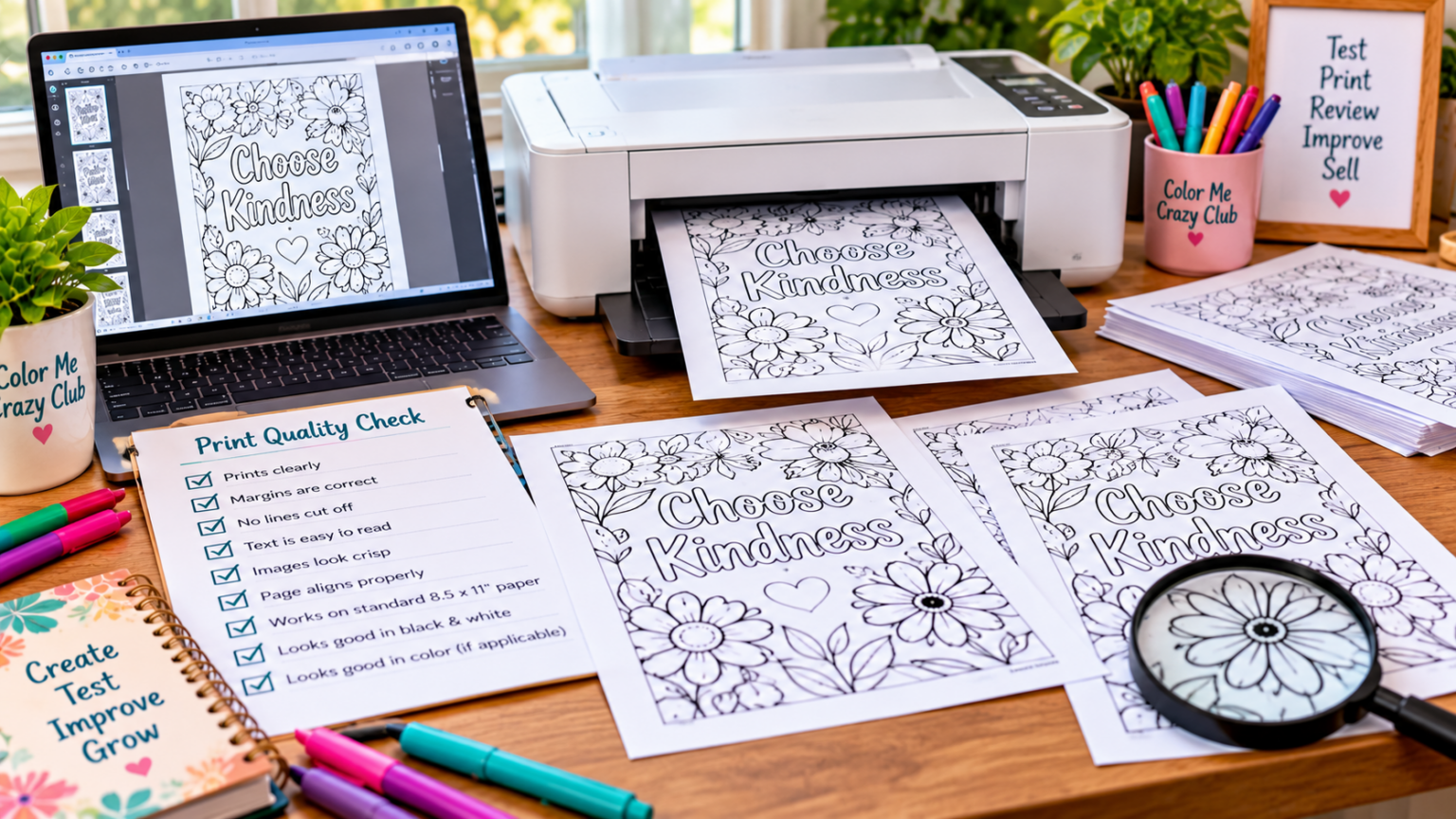
Then inspect the physical pages.
Look for Real Printing Problems
Check whether anything gets clipped near the edges.
Look at margins.
Check whether fine lines remain visible.
Make sure text is comfortable to read at actual size.
If the printable uses shaded areas or colored backgrounds, pay attention to how much ink they consume.
For coloring pages, look closely at the artwork itself. Thin details that looked fine at 200% zoom may be frustrating once they’re printed on standard letter-size paper.
For worksheets and planners, make sure writing spaces are actually large enough to use.
For puzzles, confirm that clues, numbers, grids, and answer areas remain readable.
You’re testing the physical product now, not the design file.
Test the Paper Size You Promise
If you’re selling the product as an 8.5 x 11-inch printable, test it that way.
Don’t assume that because the document dimensions are correct, the customer’s print result will automatically correct.
Printer margins, scaling settings, and page design all interact.
You want to know what happens before the customer does.
Step 4: Use the Printable Like a Customer Would
Now comes the part that creators often skip.
Actually use the thing.
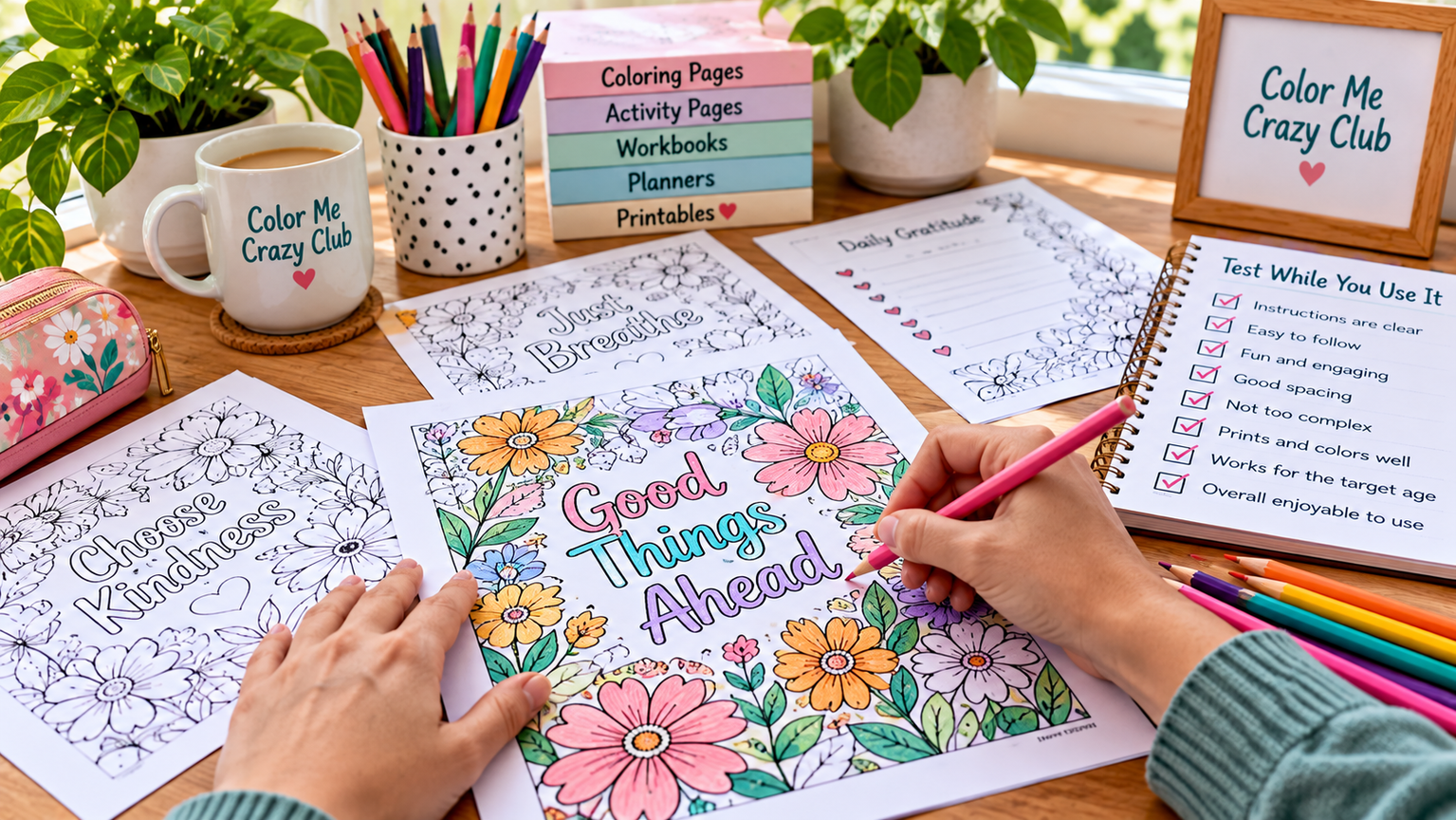
If it’s a coloring page, color part of it.
If it’s a worksheet, fill it out.
If it’s a puzzle, try solving it.
If it’s a planner, write inside the boxes and follow the workflow.
If it’s an activity for children, consider whether the directions and physical actions make sense for the intended age group.
You don’t need to complete every page. You need enough hands-on experience to find problems that aren’t visible while staring at a screen.
Watch for Small Frustrations
Maybe the writing space is too small.
Maybe an illustration is so detailed that an important section becomes difficult to color.
Maybe a planner requires information on one page that isn’t available until the next page.
None of these problems necessarily make the product unusable.
But the affect the experience.
Write them down instead of immediately stopping to redesign the product.
Finish enough of the test to understand the pattern first.
Want a more structured way to test your finished printable? My 20-Minute Product Test walks you through a practical customer-view review designed to uncover usability problems before you publish. You can find it in the Printable Production Checklists collection.
Step 5: Look for Friction, Not Perfection
This distinction matters.
Customer-view testing can become another excuse to keep a product sitting on your computer forever.
You notice one tiny alignment difference.
Then you change a font.
Then you decide the cover could be better.
Three hours later, you’re redesigning a product that was already perfectly usable.
That isn’t what we’re doing.
We’re looking for friction.
Ask Whether the Problem Affects the Customer
A useful question is:
Does this problem make the product harder to understand, download, print, navigate, or use?
If yes, fix it.
If no, decide whether the improvement is worth delaying publication.
A typo in an instruction needs attention.
A missing promised page needs attention.
Text outside the printable area needs attention.
A button or link that doesn’t work needs attention.
Moving a decorative flower to pixels to the left probably doesn’t
What to Do When Your Printable Fails the Test
Finding problems during testing is a good outcome.
That’s the point.
Don’t treat every issue equally, though.
I like separating problems into three simple categories.
Critical Problems
These can prevent the customer from receiving or using what they purchased.
Examples include:
- Corrupted or missing files
- Incorrect download files
- Pages that don’t print properly
- Missing promised content
- Broken links required to use the product
- Instructions that prevent completion
Fix these before publishing.
Usability Problems
The product technically works, but something makes the experience unnecessarily difficult.
Examples include confusing filenames, unclear instructions, cramped writing areas, awkward page order, or navigation that forces the customer to hunt for information
These are usually worth fixing before launch too.
Cosmetic Problems
These are imperfections that don’t meaningfully affect the customer experience.
Maybe you would prefer slightly different spacing.
Maybe one illustration could be moved a little.
Maybe you would choose another decorative element if you were starting again.
Be careful here.
A product doesn’t need to satisfy every new idea you have after finishing it.
Fix what matters. Then move forward.
Retest What You Changed
After correcting a genuine problem, test that section again.
Don’t assume the fix worked simply because you changed something.
Export the corrected file.
Open the exported version.
Print it again if the problem involved printing.
Use it again if the problem involved usability.
A correction can occasionally introduce a new problem, especially when page layouts or file structures change.
If your test reveals problems that need a closer look, explore my Printable Production Checklists. This resource collection covers design defects, page consistency, customer-view testing, and download delivery checks to help you identify and correct problems before publishing.
Run One Final Check Before You Publish
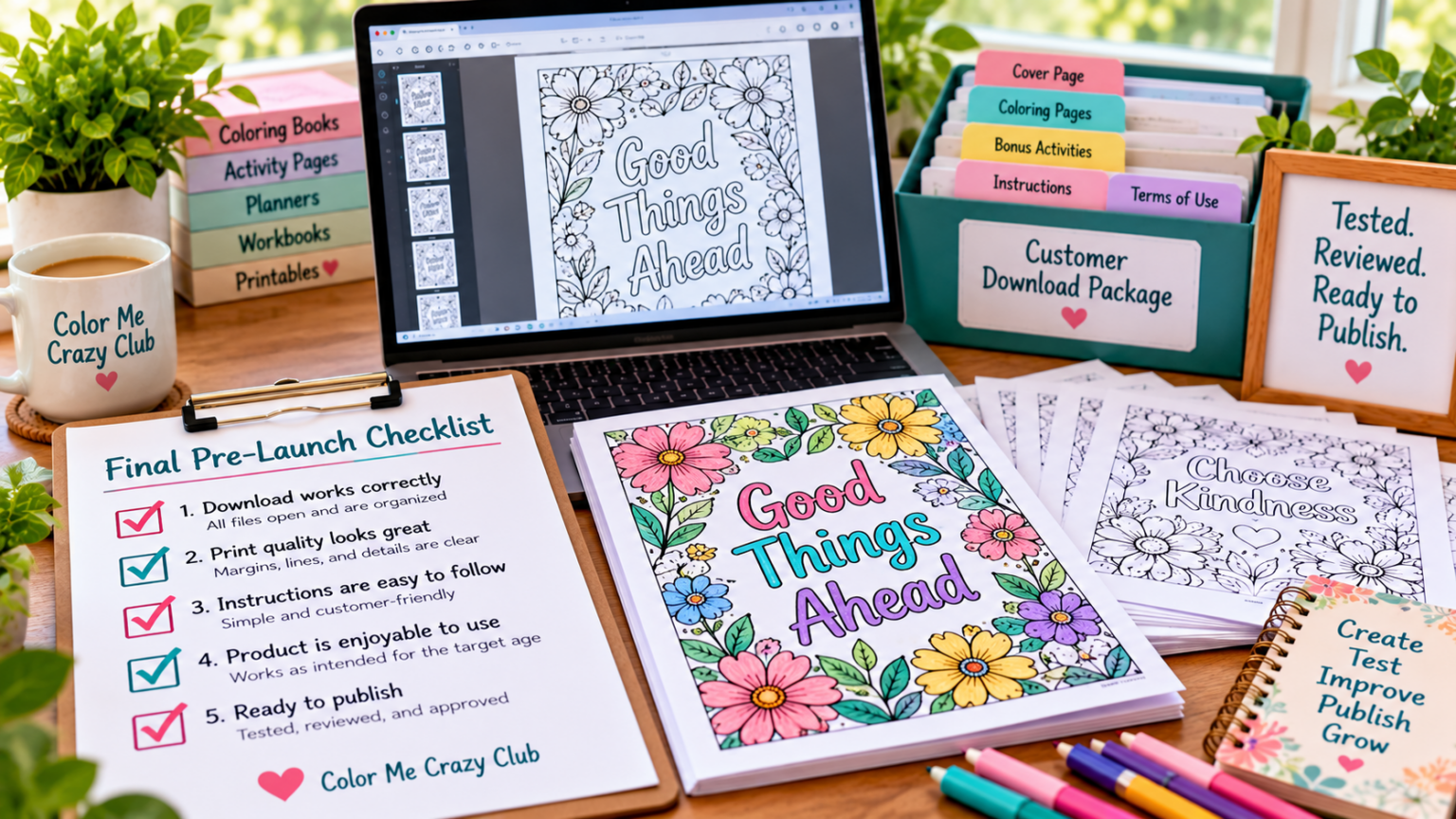
Once the customer-view test is complete, you should have much more confidence in what you’re about to sell.
You’ve opened the actual customer files.
You’ve reviewed the instructions without relying on your creator knowledge.
You’ve printed representative pages.
You’ve used the product.
You’ve fixed the friction that mattered.
Now you need on final decision:
Is this product ready to publish?
That’s exactly why I created the free Printable Pre-Launch Checklist.
It’s a simple final review you can run before publishing your next printable. It gives you five key checkpoints plus a final decision sheet so you can stop bouncing between “I think it’s finished” and “maybe I should check one more thing.”
Get the free Printable Pre-Launch Checklist:
https://colormecrazyclub.online/printable-pre-launch-checklist
You’ll also join my Weekly Build Drops, where I share what I’m actually building, testing, changing, and learning while growing CMC Coloring Club from the ground up.
Your Printable Doesn’t Need Another Week of Second-Guessing
There is a difference between being careful and being stuck.
Testing gives you a way to move forward without simply hoping everything works.
Package the product exactly as the customer will receive it. Open it with fresh eyes. Print it. Use it. Find the friction. Fix what actually matters.
You’ll also join my Weekly Build Drops, where I share what I’m actually building, testing, changing, and learning while growing CMC Coloring Club from the ground up.
Then make the decision to publish.
If you’re at the point with a product right now, use the free Printable Pre-Launch Checklist for your final review:
Get the Printable Pre-Launch Checklist:
https://colormecrazyclub.online/printable-pre-launch-checklist
And if you want to follow what happens after I hit publish, join me through Weekly Build Drops. I’m documenting the actual CMC Coloring Club build, including the things that work, the things that don’t, and what I change because of the results.