How to Print Coloring Pages at Home Without Wasting Ink, Paper, or Money
Print better-looking coloring pages at home with a few simple settings—so you waste less ink, use the right paper, and get clean lines every time.
If you’re printing coloring pages at home, you’ve probably had that moment.
You hit print. The page comes out too light, too fuzzy, or slightly cropped. So you tweak a setting, print again, and suddenly you’re three pages deep and wondering how a “one-page coloring page” turned into a mini budget crisis.
The good news: most waste isn’t your printer. It’s the setup.
This is a friendly, real-world guide to printing coloring pages that look clean and feel good to color—without burning through ink, paper, or money.
The Fast Version
Print one test page first, then lock in your settings before you run a full batch. Use Actual Size/100% (not “Fit to Page”) to avoid cropping, start with Normal quality so you don’t burn ink unnecessarily, and use grayscale/draft for quick test prints. If you color with markers, switch to a heavier paper to reduce bleed-through and keep your finished pages looking crisp.
The Real Cost of Printing Coloring Pages at Home
Home printing feels cheap because each page is “just one sheet.” But the real cost shows up in the stuff nobody thinks about until it’s happening: test prints, reprints, and ink used by “helpful” settings you didn’t even know were turned on.
It also shows up when the paper you grabbed is technically fine for homework—but totally wrong for gel pens or markers. When the page buckles, feathers, or bleeds through, you don’t just lose one sheet. You lose time, ink, and the fun of the whole thing.
Why Most People Spend More Than They Need To
Most overspending comes from a handful of repeat mistakes. People print the same page multiple times because the first one came out light or blurry. They leave the printer on “Photo” or “Best” quality because it sounds like the right choice. They buy paper that sounds premium but doesn’t match the tools they’re using. And they download low-quality files that were never going to print sharply in the first place.
If you fix those four things, your costs drop fast—without needing a new printer.
The Hidden Cost of Cheap Ink
Cheap ink can be totally fine… until it isn’t.
Off-brand cartridges and refills sometimes print lighter blacks, clog more often, or trigger extra cleaning cycles. And cleaning cycles are basically your printer drinking ink straight from the bottle. If you print a lot, the “cheap” choice can quietly become the expensive choice.
Understanding Cost Per Page
The simplest way to think about cost per page is this: you’re paying for ink, paper, and waste.
Ink cost per page varies a lot depending on printer type. Paper cost per page is usually predictable. Waste is the wild card—reprints, test prints, and “why did it crop that?” mistakes.
Most people obsess over ink and ignore waste. But waste is where the money leaks.
The Cheapest Way to Print High-Quality Coloring Pages
You don’t need a fancy setup. You need a setup that matches how you actually color.
And since a lot of households are “all of the above” (pencils, gel pens, markers), the goal is pretty simple: crisp black lines, paper that doesn’t buckle or bleed like crazy, and settings that don’t waste ink.
Best Budget Printers for Heavy Use
If someone prints often (weekly or more), two printer types usually make the most sense.
Tank printers (EcoTank/MegaTank style) tend to win on long-term cost because the ink is cheap per page and they’re built for volume. Monochrome laser printers are also a strong choice if the main job is printing black line art, because they’re fast, crisp, and smudge-resistant.
The goal isn’t “best printer on the internet.” It’s the lowest cost per page with consistent black lines.
Laser vs Inkjet for Coloring Pages
Both can work, but they behave differently.
Laser printers usually give you the sharpest black outlines and they don’t smudge the same way ink can. They’re great for people who print a lot of line art and want consistency.
Inkjet printers can look excellent too, especially for households that also print color. The tradeoff is that settings and paper choice matter more, and ink can be more expensive unless you’re using a tank system.
Affordable Paper That Still Feels Premium
Paper is the fastest upgrade you can make.
For everyday printing and colored pencils, a brighter 24–28 lb paper is a simple step up from the thinnest copy paper. For gel pens, smoother paper helps reduce skipping and scratchy lines. For markers—especially alcohol markers—heavier paper helps, but you don’t have to go extreme right away. A lot of people get a noticeable improvement just moving up to a heavier, brighter sheet.
If you want pages to feel less flimsy in your hands, even a small jump in weight makes a big difference.
Bulk Printing Strategies That Save Money
Bulk printing is where people accidentally waste the most.
A simple routine helps: print one test page per new file pack, save your best settings as a preset if your printer allows it, and only print the pages you’ll actually use this week. If something prints weird and you’re annoyed, don’t immediately reprint the whole stack. Put it in a “reprint later” folder and come back when you’re calm.
That sounds small, but it stops the rage-reprint spiral.
Ink-Saving Printer Settings That Still Look Sharp
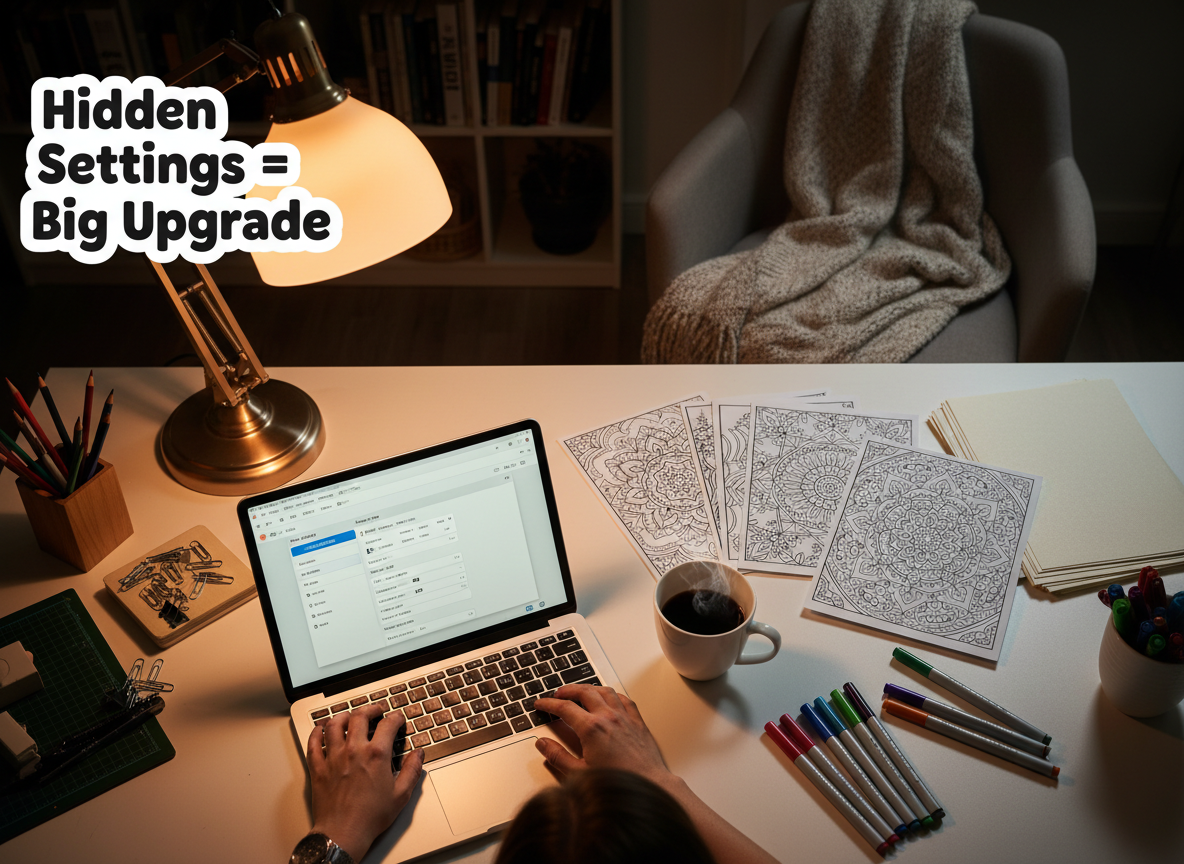
You can save ink without making pages look faded. The trick is choosing settings that keep line art crisp.
Draft Mode vs High Quality Mode
Draft mode is fine for quick previews and “is this the right page?” checks, but it’s not always great for final pages. If draft mode makes your blacks look gray, don’t use it for anything you plan to color.
Also, you usually don’t need Photo mode for line art. Photo settings often soften edges to make photos look smoother. Coloring pages need the opposite.
Black Ink Optimization Settings
This is where a lot of people accidentally waste ink.
If your printer offers grayscale, use it. If it offers black-ink-only, that can help too. And if you see “enhancements” meant for photos, turn them off. For coloring pages, you want clean edges—not photo smoothing.
Eco Printing Tricks Most People Ignore
The easiest eco trick is also the easiest money-saving trick: don’t print “color black.” Print in grayscale so the printer doesn’t mix color inks to fake a richer black.
Another big one is avoiding unnecessary cleaning cycles. Maintenance matters, but cleaning when you don’t need it is pure waste. If the lines look fine, don’t “just run a cleaning to be safe.”
How to Avoid Reprinting Failed Pages
Most failed prints happen for predictable reasons: wrong scaling, wrong paper type selected in settings, or printing from a low-quality JPG instead of a clean PDF.
Before you hit print, do a quick check. Set scale to 100% or Actual Size, confirm the paper size matches the file (US Letter vs A4), and preview the page to make sure nothing is cropped.
That 15-second check saves a lot of reprints.
Where to Find Free and Low-Cost Printable Coloring Pages
If you’re building a home coloring habit, you don’t need to spend a fortune. You just need to know where quality lives.
Best Websites for Instant Downloads
In general, the best downloads clearly state what you need to know: PDF format, 300 DPI (or “print-ready”), personal use terms, and crisp preview images.
If a listing is vague, it’s usually a gamble.
Etsy vs Membership Libraries vs Free PDFs
In general, the best downloads clearly state what you need to know: PDF format, 300 DPI (or “print-ready”), personal use terms, and crisp preview images.
If a listing is vague, it’s usually a gamble.
How to Spot Low-Quality Downloads
Low-quality downloads usually tell on themselves. If the pack is JPG-only, the previews look blurry, the file sizes are tiny for a “huge bundle,” or there’s no mention of print size (Letter/A4), be careful.
If the preview looks soft on-screen, the print will look worse.
Copyright and Personal Use Rules Explained
Here’s the plain-English version. Personal use usually means you can print for yourself and your household. It usually does not mean you can resell, share the files, or upload them anywhere.
If you want to print for a classroom, group, or business, look for an option that allows that. When in doubt, check the license terms on the download page.
Creating a Reusable Home Coloring System
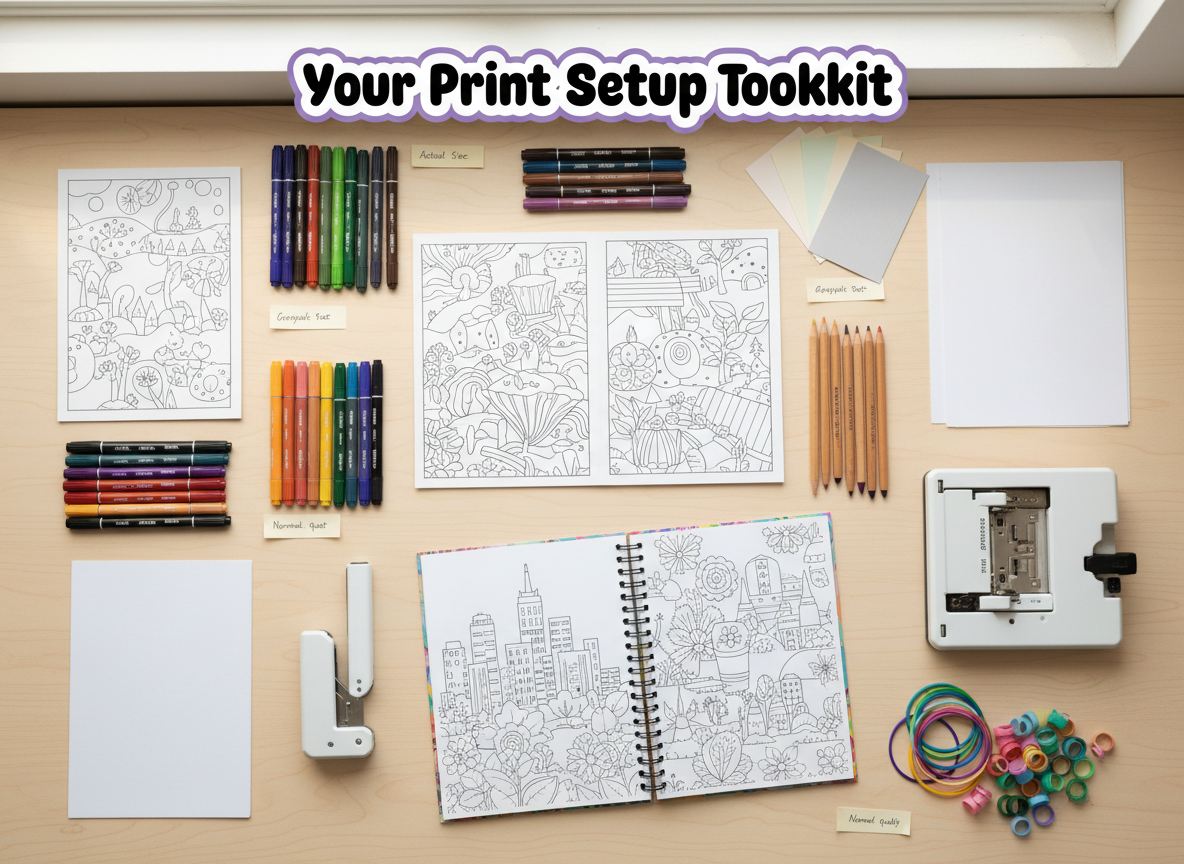
If you want to save money long-term, the biggest win is reuse.
Laminating Coloring Pages for Reuse
Laminating turns a one-time page into a reusable activity.
It’s great for kids who want to color the same page again and again, for testing color palettes, and for quick “I need to decompress right now” pages. Pair it with dry-erase markers and you’ve got something you can use over and over.
Dry-Erase Coloring Setups
A dry-erase setup can be as simple as laminated pages (or page protectors), dry-erase markers, and a soft cloth.
This is especially helpful for families who don’t want to burn through prints daily.
Organizing Digital Coloring Libraries
If downloads are scattered, people waste time—and they re-download things they already own.
A simple folder system fixes that. Organize by theme (Animals, Mandalas, Cozy, Fantasy) or by source (Etsy, Gumroad, Membership). Then keep a “Print Next” folder so you’re not hunting every time you want to color.
Building a Family-Friendly Coloring Station
You don’t need a craft room. You need a small “grab and go” setup.
A paper tray with your go-to paper, a folder for finished pages, a clipboard or hard backing board, and a small bin for markers/pencils is enough. The easier it is to start, the more often it gets used.
Beginner Mistakes That Waste Time and Supplies
These are the mistakes that quietly cause most of the reprints.
Wrong Paper Orientation
If the file is designed for portrait and you print landscape (or vice versa), you’ll get weird scaling, cropped edges, and shrunken artwork.
Double-check orientation before printing a full stack.
Incorrect File Resolution
If the file is low-res, the printer can’t “fix” it.
When possible, print from PDF instead of tiny JPGs. Also look for files designed for US Letter (8.5 x 11) or A4 so you’re not fighting scaling.
Overusing Premium Ink Settings
“Best” quality sounds like the right choice—until you realize it’s using extra ink to do photo-style smoothing.
For line art, you usually want grayscale, normal/high quality (not photo), and black ink focus.
Ignoring Printer Maintenance
If lines are suddenly broken or streaky, don’t keep reprinting.
Run a nozzle check if your printer has it, clean print heads only when needed, and keep paper stored flat and dry. A printer that’s fighting you will waste more ink than any setting choice.
Make Every Print Count
Printing coloring pages at home doesn’t have to feel like trial-and-error roulette. Once you set a few defaults—Actual Size/100%, a sane quality setting, and paper that matches your coloring tools—you’ll stop wasting ink and paper and start getting pages that look crisp and feel good to color.
If you take one thing from this guide, let it be this: run one test page first. That one extra minute saves the most money (and frustration) because it catches the “too light / too cropped / wrong paper” problems before you print a whole stack.
Pro Tip: Save a “Coloring Pages” Print Preset
Once you find settings that work, save them as a preset on your computer (or take a screenshot of the print dialog). Your go-to baseline is usually: Actual Size/100%, Normal quality, and grayscale for test prints. Then every time you download a new printable, you’re starting from a proven setup—not guessing from scratch.
Printing Questions, Answered
Thanks for Reading — Here’s a Free Printable
Thanks for reading—and as a gift, I’d love to give you my Kawaii Mega Sampler Pack to download and print at absolutely no cost.
